Knowledge Base Article Custom Google App
Overview:
In order to provide users with maximum flexibillity, we have introduced user-specified OAuth2 Applications for the following Google REST services:
- Google Admin
- Google Analytics
- Google BigQuery
- Google Calendar
- Google Cloud Monitoring
- Google Cloud Storage
- Google Dataplex
- Google Drive
- Google Forms
- Google Maps
- Google People
- Google Search Console
- Google Sheets
- Google Tasks
In case you want to use the COZYROC application, leave the values as is and continue onwards with the generation.
If you have an application all you have to do is edit the default values while generating your OAuth2 token and SSIS+ will generate and refresh the token with your application.
If you wish to create your very own application, follow the simple steps below. You can access the official Google authentication here.
Step 1: Access Google Cloud Console
Log into the Google Cloud Console, you can access it here and click on the project button.
Step 2: Create a New Project
Click on the New project button. Enter a name for your project. If your account belongs to an organization, you may choose it as a Parent resource.
 Projects under an organization inherit IAM Access permissions. If you proceed without an organization, no default values are set, but they can be changed later.
Step 3: Enable APIs & Services
- Click the top-left button to show the side panel.
- Select APIs & Services, then select Enabled APIs & services.
- Review available APIs; if a specific one (e.g., Google Cloud Monitoring) is missing, click Enable APIs and services to add it.
Step 4: Configure the OAuth Consent Screen
- Navigate to the OAuth consent screen submenu.
- Click Audience from the left menu to configure your needs.
- User Type: Select Internal (available only to organization accounts) or External (available to any Google account).
- Publishing Status:
- Testing: Limits users to 100 and tokens expire in 7 days.
- Production: Removes these limits but requires verification.
Step 5: Create OAuth 2.0 Client IDs
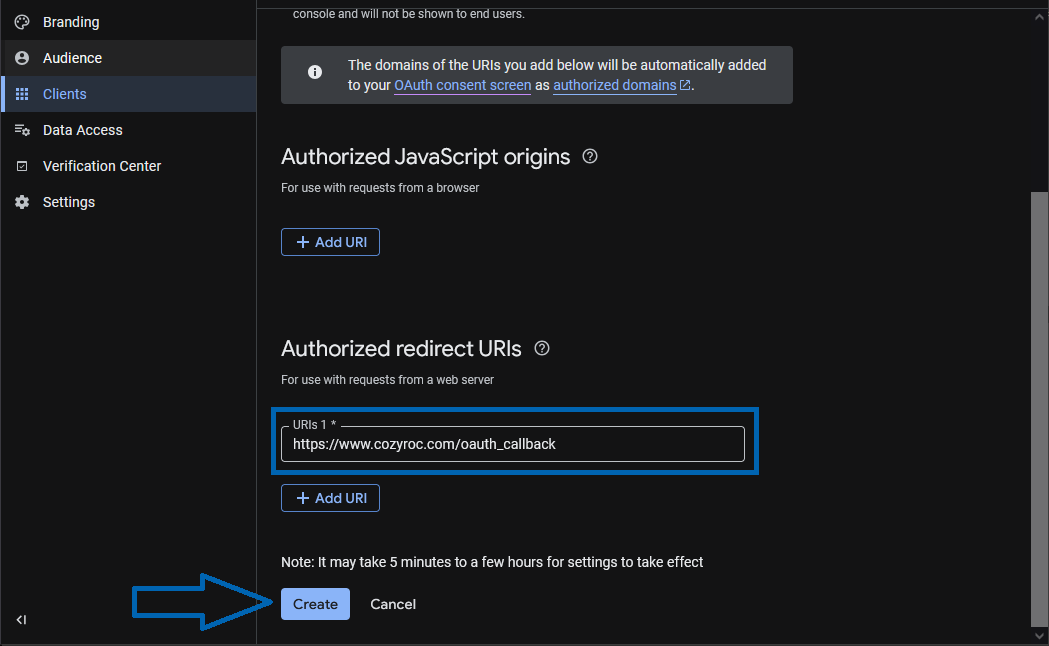
- Change menus to Clients and click the Create client button.
- Select Web Application as the type and provide an appropriate name.
- Authorized Redirect URI: You must add the following COZYROC Callback URI:
https://www.cozyroc.com/oauth_callback. Hit Create.
Finalizing the Integration
Once created, copy the client_id and client_secret. Optionally, you can download them as a JSON file.
Paste these credentials into the COZYROC REST Connection Manager to complete the setup. Keep these credentials safe!.